ChatGPT Business Hub is here: what it is and how to work with it
OpenAI's Business Hub lets companies claim a ChatGPT profile and see mentions and clicks. What launched, who can use it, and what decides the numbers.
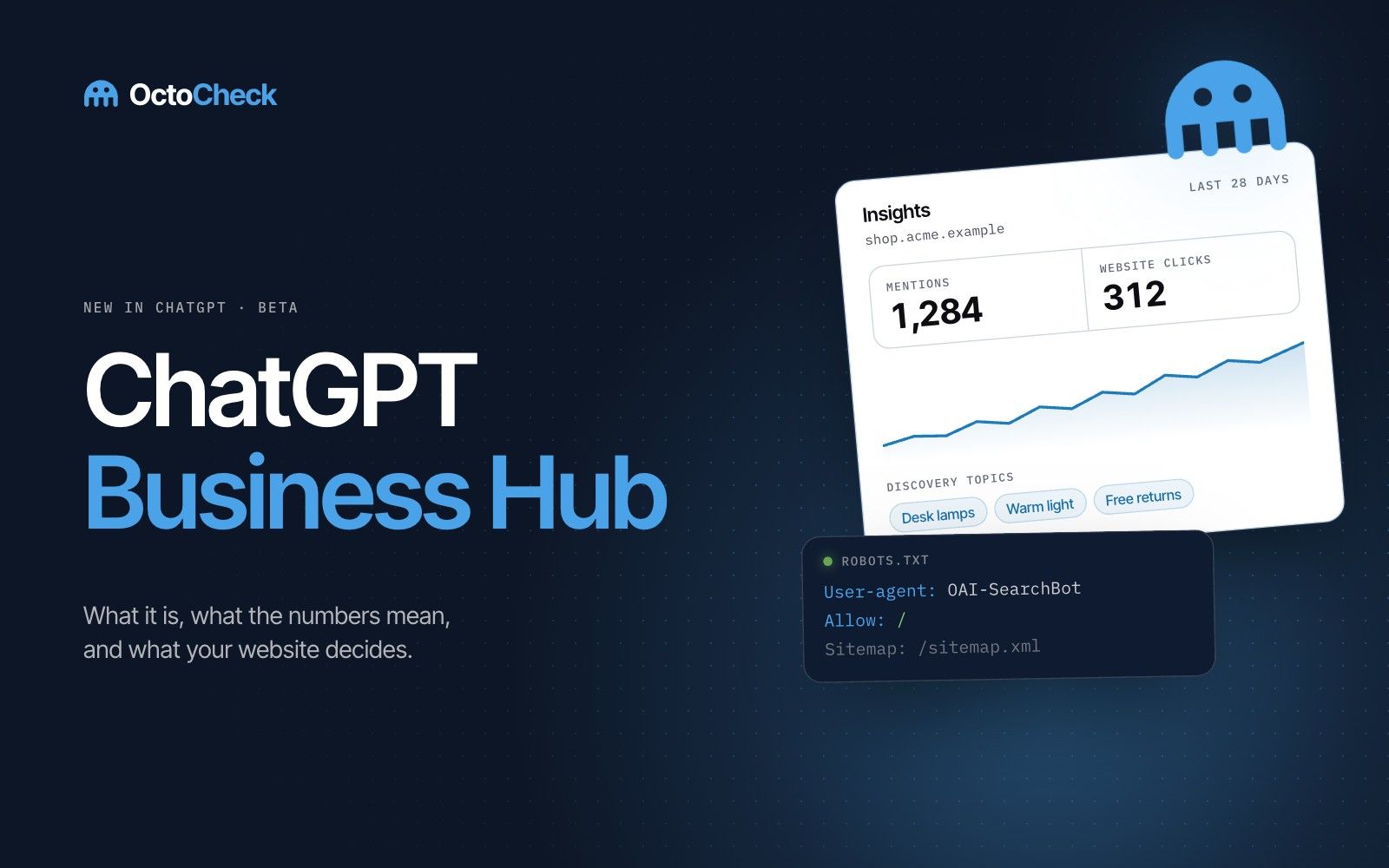
On November 10, 2026, OpenAI launched Businesses in ChatGPT in beta. The main part is Business Hub: a dashboard where a company can claim its business in ChatGPT, keep its details up to date, and see how often ChatGPT mentions it and sends people to its website.
Below: what launched, who can use it, what the numbers mean, and what on your own website affects them.
Business Hub is in beta. This post reflects OpenAI's documentation as of November 18, 2026.
What OpenAI launched
Business Hub is where you claim and manage your business. After verification you can edit your website, description, category, logo, and delivery and return policies. Online stores can also add a product feed with prices and availability, from Shopify, a CSV file or a feed URL. OpenAI reviews every change, and ChatGPT may still use other sources when it answers questions about you.
The second part is Business Agents: a separate, clearly labeled chat where people can ask a business about its products and policies. For now it is only for eligible online stores and online service businesses in the United States. The agent can explain and link to your website, but it can't take orders or bookings. You don't need to advertise or publish an agent to claim your business.
Who can use it
OpenAI says eligible businesses can claim a profile where ChatGPT is available and the required verification is supported, and that availability depends on the business's location and type. Local stores and restaurants can currently claim only an existing U.S. listing. Online businesses that aren't listed yet may be able to add themselves.
Not every claim gets approved. OpenAI reviews each claim and then verifies the identity of the person behind it, and either step can end in a rejection or a request for more information. OpenAI hasn't published which business types can claim a profile or the reasons it turns claims down, so for now there is no clear answer to why some attempts fail. If verification fails, OpenAI's help page says to follow the instructions in the email and try again if that option appears.
How claiming works
- Open Business Hub and sign in with your ChatGPT account.
- Search for your business and select the right listing.
- Confirm that it's yours. Depending on the listing, you can use the business phone, business email, a DNS record on your domain, or your Shopify store.
- Wait for OpenAI's email with its decision.
- Verify your identity. You may need a government ID, business registration details and proof that you can represent the business. You can't edit the profile or see insights until this is approved.
Two things to know first. If you create a new profile, it goes live automatically once it's approved. A published profile can't be deleted, not even by OpenAI Support. And claiming doesn't make ChatGPT recommend you more: OpenAI says it "doesn't guarantee increased visibility." Full steps are in OpenAI's setup guide.
What the numbers show
Insights cover the last 28 days:
- Mentions. For an online business, OpenAI is specific: "a mention counts when ChatGPT references the business's website. The brand name alone doesn't count." For a local business, a mention is ChatGPT showing a result for that location.
- Website clicks. How often people clicked a link to your site in ChatGPT.
- Discovery topics. The main themes of answers that mentioned you. You don't see the actual questions people asked.
You never see individual conversations, and numbers only appear once there is enough activity. An empty chart doesn't mean zero.
How to work with it: start with your website
The mention rule is the key part. For an online business, ChatGPT saying your name isn't enough; the answer has to link to your website. So in practice, the mentions number shows how often ChatGPT cites your site. OpenAI doesn't phrase it that way, but it follows from its own definition. That makes your website the first place to look.
Developer Flavio Copes found a clear example. He asked ChatGPT about wool running socks. Of the five brands it recommended, two (Bridgedale and Injinji) got no link to their own site; ChatGPT linked to retailers instead. By OpenAI's rule, those two brands get no mention from that answer, and the retailers do.
Here is what to check on your site.
1. Let ChatGPT's search bot in
OpenAI uses a bot called OAI-SearchBot to find pages for ChatGPT search. If your robots.txt blocks it, your site won't show up in ChatGPT search answers. A different bot, GPTBot, collects content for AI training; you can block that one and still appear in search.
Open yourdomain.com/robots.txt and look for any rule that blocks OAI-SearchBot, or blocks every bot at once. After you change the file, OpenAI says it takes about a day to take effect. Our robots.txt guide covers the details.
2. Make sure your firewall doesn't block it
Even when robots.txt allows the bot, your hosting, CDN or bot protection can still block it. OpenAI lists the IP addresses its search bot uses on the same bots page and recommends allowing them. If your robots.txt looks fine and ChatGPT still never links to you, check this next. More in our guide on firewall and CDN blocking.
3. Make sure your text loads without JavaScript
Many AI bots read only the HTML your server sends and don't run JavaScript. OpenAI doesn't say how its search bot handles this, but a 2024 study by Vercel and MERJ found that none of the major AI crawlers, OpenAI's included, ran JavaScript. If your text or prices only appear after scripts load, the bot may see an empty page. Our JavaScript rendering guide shows how to check.
4. Make sure the page can be indexed
The page you want cited should open normally, without errors, and must not be marked "noindex". It should also not point search engines to a different URL as its main version. These settings are easy to break by accident during a redesign. See our guides on indexing and canonical URLs.
5. Use the same website address everywhere
Your profile is tied to a website. Put the exact address you want credited on it, in the same form your site uses, with or without www. OpenAI doesn't say how mentions are matched to a profile, but using one address everywhere removes the guesswork. On the site itself, Organization structured data with the same name, address and logo helps keep things consistent. See Organization schema.
If your numbers are empty
- Check that your identity verification is approved. Insights stay locked until it is.
- Remember that empty can mean there isn't enough activity yet. Barry Schwartz of Search Engine Roundtable reported that his dashboard still showed no data a week after he verified.
- Go through the five website checks above.
- If it stays empty, OpenAI recommends contacting OpenAI Support.
Compare the clicks with Google Analytics
Business Hub counts clicks on links to your site. Google Analytics counts the visits that actually arrive. The numbers won't match, but together they're useful: Business Hub gives one total for your site, and Google Analytics shows which pages people landed on. In GA4, go to Reports, then Acquisition, then Traffic acquisition, filter Session source to chatgpt.com, and add the landing page as a second column.
One reason the numbers differ: Google Analytics recognizes ChatGPT visits by a tag ChatGPT adds to its links. Profound found that in mid October this tag briefly disappeared from most answers. Visits without the tag can lose their ChatGPT label in your reports, so a drop in Google Analytics doesn't always mean fewer clicks.
The short version
Claiming a profile lets you tell ChatGPT who you are. Whether ChatGPT links to you, and so whether mentions appear, still depends on your website. To check the page you most want ChatGPT to cite, OctoCheck runs a free audit in your browser: AI bot rules in robots.txt, content that needs JavaScript, structured data and indexing.